Hello! Firstly, we’re sorry to hear your WiFi isn’t as good as it could be – it can be incredibly frustrating when things aren’t working properly, your devices won’t load webpages or videos on Netflix or iPlayer buffer constantly or won’t play at all. We’re sure you’ve spent tons of time WiFi troubleshooting and may well be at the end of your tether already, but you can do it!
We all love to be connected. It’s no secret that every household in the UK are becoming more and more dependent on their internet connections for both work and play. As every year passes, more and more devices become internet enabled. No longer is it just phones and computers, we now have doorbells, smart speakers, security cameras and even kitchen appliances!
Our engineers have put this guide together to help you to troubleshoot your issues and consider ways in which you could resolve it. We know this guide is pretty long, but it’s decades of experience from our team distilled in to one page. We’re constantly adding to it to include more information, cover different issues and the relevant solutions for those. If this doesn’t help resolve your issue, feel free to reach out to us and we can try to add to the guide!
If you don’t have the time or inclination to progress down the DIY route, feel free to book a Troubleshooting Consultation and one of our engineers will be quickly get to the bottom of your issue and provide guidance on the best way to resolve it – permanently.

We have created this guide to cast some light on the ins and outs of internet related issues and hopefully dispel some of the myths surrounding them.
Table of Contents
An Introduction to Broadband and WiFi
Before we get on to troubleshooting, there are a few things we think you ought to know.
The difference between broadband and WiFi
It is really important to understand that broadband and WiFi are not the same. Broadband is the service being delivered to your home by your Internet Service Provider (ISP) and is what connects your home to the internet, via your router. Using a water analogy, this is the water board – their responsibility is to get mains water in to your home. It’s not to ensure that there is water available in every bathroom.
WiFi is the technology which allows your devices to connect to your router wirelessly. In itself, WiFi does not provide internet access. Using the water analogy again, this is the plumbing within your home. It distributes the water that has already been supplied to the property to areas you’d like to use it.
This subtle difference is absolutely fundamental in understanding why issues can arise, how to find the problem and how to resolve it. Think of it like this – if you had a leak from a tap, you’d call a plumber not the water board. It’s similar in this situation; if there’s a problem with your WiFi, you need the assistance of a network engineer, not your ISP.
What is a router?
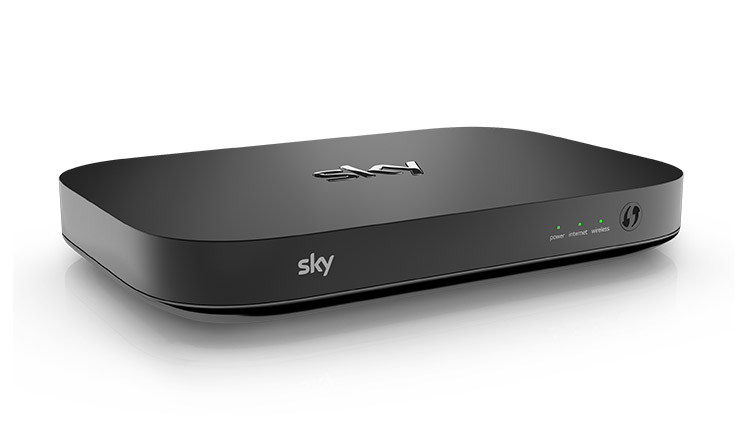
A router, in a home setting, is a multi-functional device. It has two primary functions:
- Modem & Router – these elements of the device allow devices within your home to communicate with each other and also with the wider internet.
- Wireless access point – this element of the device allows your devices to connect wirelessly to the router, instead of with a network cable.
Responsibilities
Your ISP is responsible for everything on their network, the cabling to your home and your router. In the majority of cases, this router will be capable of broadcasting WiFi around all areas of your home and that is the end of the matter.
In the event that your router does not provide adequate wireless performance around your home, you are responsible for improving it. Some providers offer boosters, extenders and mesh type systems at additional cost, but these are rarely a quality solution and often introduce more problems. We will cover this later.
The need for (more) speed?
It is a common misconception that to rectify issues, you should take a faster (i.e more expensive) package from your provider. Whilst this is sometimes the limiting factor, it is actually quite unusual that this improves matters. This is because there are usually other issues causing greater problems.
We have written a basic guide to the types of broadband available in the UK, as well as the speeds you can expect from your current package in the next article in this series – Types of Broadband.
If you already know what type of broadband you have and the speed which you should be receiving, feel free to skip that guide and progress to the next article in the series – Why do I have problems with my internet?
Types of broadband
There are four main types of broadband in the UK. The main difference is in how they are delivered to your home.
ADSL and VDSL are both delivered to your house using your phone line, using the ‘BT’ network of cabling, now owned and operated by OpenReach. Various internet providers use this network of cabling – BT, Sky, TalkTalk, PlusNet, EE are some common examples.
ADSL – largely replaced by VDSL
- This type of internet connection is delivered using copper cabling from your nearest BT Exchange (this handy page shows you where your nearest one is: https://availability.samknows.com/broadband/exchange_search) to the nearest distribution point (green box in the street), and then uses copper cabling linked along telegraph poles to enter your property.
- ADSL has a theoretical maximum speed of around 24Mbps, though common download speeds are around 8-12Mbps. Upload speeds are between 1 and 2Mbps
VDSL – also known as fibre optic, Fibre to the Cabinet or FTTC
- This is the most common type of internet connection in the UK, and is similar to ADSL, except it uses fibre optic cabling from your local BT Exchange to the distribution point (green box in the street). From there, it again uses overhead copper cabling to enter your property.
- VDSL has a theoretical maximum speed of around 78Mbps, though some providers also offer a package which is around half of this. Common download speeds range from 40-70Mbps. Upload speeds are usually 8-20Mbps.
Both ADSL and VDSL are fastest when you are close your exchange. The further away you are, the greater the speed drop you will experience.
Most customers will now be on a VDSL ‘fibre optic’ plan, as the speeds are several times faster than ADSL and the cost is not significantly higher. In the event that you still have ADSL, changing to VDSL (at almost no extra cost – usually around £5 per month) should be your first step to improving matters.
Virgin Media
- Virgin have their own cabling network which covers most of the UK. This was historically TeleWest and then Cable & Wireless before Virgin’s acquisition.
- Their network is different to the OpenReach one, as they use coaxial cable (a bit more like TV aerial cable) to connect your property to their network.
- Generally, Virgin customers all receive the full speed, as they are not reliant on miles of copper cabling which can become degraded.
- Virgin offer packages starting from 50Mbps up to 1000Mbps (Gigabit) in some areas. Download speeds tend to be around a tenth of the upload speed.
- The downside to Virgin is that they tend to be more expensive, and don’t have as complete coverage, especially in rural areas.
FTTP – also known as Fibre to the Property or Full Fibre
- This is the latest and greatest type of internet connectivity in the UK, and will offer speeds of up to 1000Mbps (Gigabit) for a relatively affordable price.
- It uses an actual fibre optic cable all the way to your house from the Exchange.
- It has all the benefits of Virgin (new and fresh cabling, not affected by distance from exchange) as well as (usually) being a symetric connection – both 1Gbps upload and download speeds.
- In common with Virgin Media, the coverage is currently quite low – less than 10% of homes area able to benefit from this type of connectivity, and currently they tend to be in city centre locations. That said, progress is being made, and each year more and more of our customers have been able to sign up for this service.
How do I find out what type of Internet connection I have?
As we covered above, there are four main types of broadband available in the UK – ADSL, VDSL, Virgin Media & FTTP.
The easiest way to find out which you have is to look at your bill. We have compiled a list of package names and what they actually are below.
| Provider | ADSL (max 24Mbps) | VDSL (either a max of around 38Mbps or 76Mbps) |
| BT | Broadband | Fibre Essential, Fibre1, Fibre2 |
| Sky | Broadband Essential | Broadband Superfast |
| TalkTalk | Fast Broadband | Faster Fibre, Superfast Fibre |
| EE | Standard broadband | Fibre Broadband, Fibre Plus Broadband |
| PlusNet | Unlimited Broadband | Unlimited Fibre, Unlimited Extra |
| Vodafone | Not offered | SuperFast1, SuperFast2 |
| NowBroadband | Brilliant Broadband | Fab Fibre, Super Fibre |
Virgin Media’s packages are more clearly named and are all based on the maximum speed offered.
| Package name | Maximum speed offered | ||
| M50 | 50Mbps | ||
| M100 | 100Mbps | ||
| M200 | 200Mbps | ||
| M350 | 350Mbps | ||
| M500 | 500Mbps | ||
| Gig1 | 1000Mbps (Gigabit) |
Why do I have problems with my Internet?
As we mentioned in the first article in this series, it is really important to understand that broadband and WiFi are not the same.
Broadband is the service being delivered to your home by your Internet Service Provider (ISP) and is what connects your home to the internet, via your router.
WiFi is the technology which allows your devices to connect to your router wirelessly. In itself, WiFi does not provide internet access.
Common issues
The following indicate there is a problem of some description:
- Slow loading of web pages
- Devices show they are not connected to WiFi
- Videos buffer or do not play at all
- Games lag or glitch during online play
- Cannot play music through smart speakers
- Cannot access smart devices when away from home
All of the above can be permanent or intermittent issues.
This leads us in to the most important point of this series of articles. In order to find out why you are experiencing internet issues, you must first ascertain whether the cause of the issue is your broadband service or your WiFi. There are a variety of potential issues with both, which we have covered in later articles to help you get to the bottom of the problem.
What next?
As there are two potential sources of an issue, we must first find out which is responsible. To do this, we must separate broadband access from WiFi. In the next section, we show you how to run a speed test while connected to your router with a cable. This will tell you whether the issues you are experiencing are with your broadband service or with your WiFi.
Finding the source of your issue
As we have already mentioned, we need to find out whether your broadband service or your WiFi is causing your issues. The way to do this is to run a speed test while connected directly to your router with a cable. This will test the incoming speed to your router without any chance that WiFi issues are skewing your test results.
You will need a computer with an Ethernet port and an Ethernet cable. These are often supplied with your router. Below is a picture of both the port and the cable.
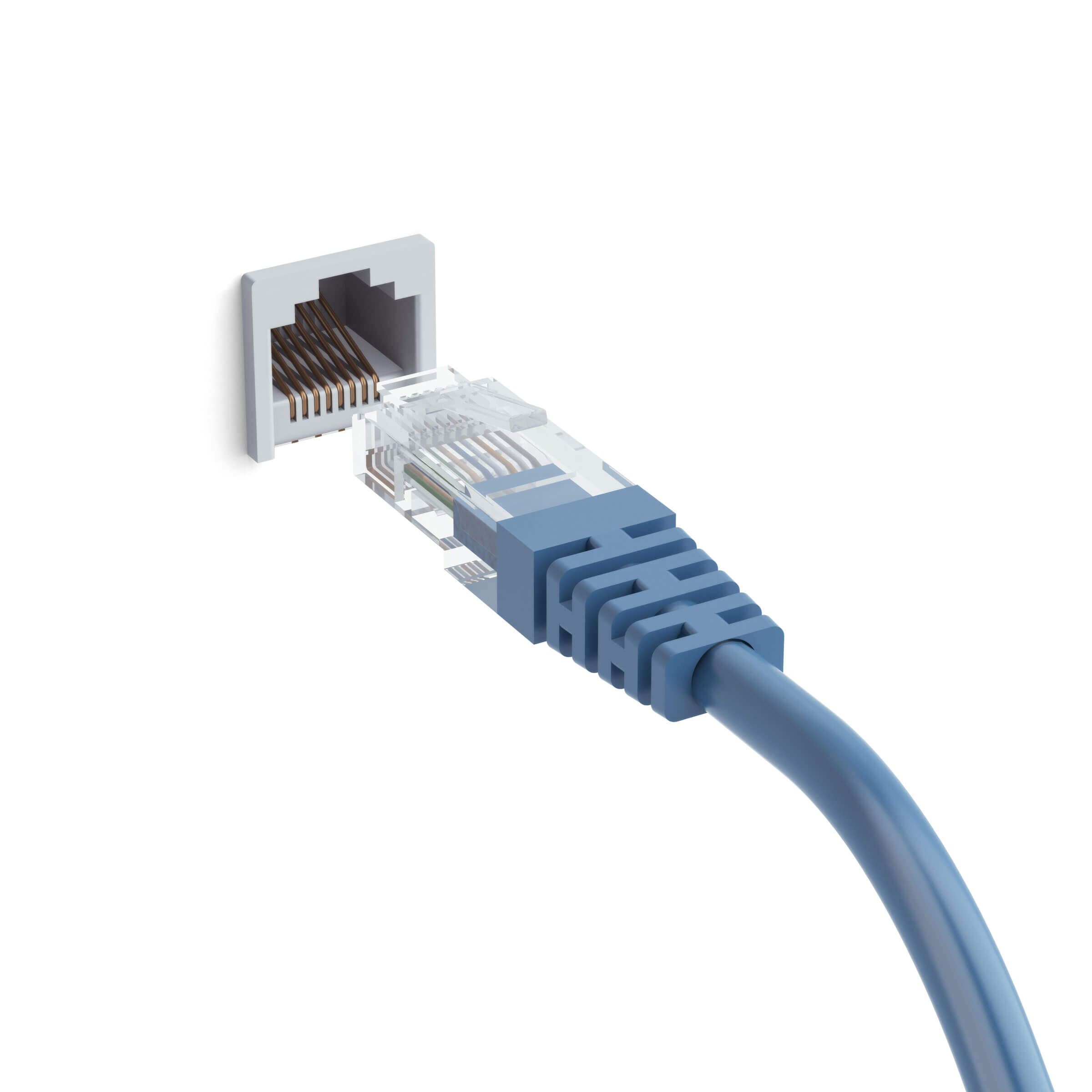
If you do not have an Ethernet cable, you can buy one cheaply from most supermarkets or Amazon.
If you do not have an Ethernet port on your computer, you will be unable to complete this test without an adapter. Some info on adapters is available here.
Once you have a suitable device with which to test and a cable, connect your computer to a free port on your router. If there are different coloured free ports, choose one marked LAN.
Open a web browser and navigate to Fast.com. There are various other speed testing sites available, but we recommend Fast.com as it’s very easy to use.
After a short while, your current speed will be shown:

Click ‘Show more info’ and wait until an upload speed is displayed:

Now compare this speed test to the speed you are paying for with your provider. Is it similar?
If it is, your broadband service is working correctly, your router has a good connection to the internet and any devices connected with a cable should operate correctly. It is likely that the issues you have experienced are with your WiFi rather than your broadband service.
Click here to go to the next stage in the guide: My broadband speed is similar to the speed I am paying for.
If it isn’t, your broadband service appears to be at fault and we need to look at issues which could be causing it and how you can improve things.
Click here to go to the next stage in the guide: My broadband speed is much less than the speed I am paying for.
My broadband speed is similar to the speed I am paying for.
Fab! That’s great news. This indicates that your broadband service is working correctly. Any devices which connect to the router with a cable should not be experiencing any issues with accessing the internet.
It is likely that your issues are WiFi related, so the next step is to to narrow this down a little more so we can find the best way to fix it.
We are looking to find out whether there is a general issue or whether it is only in specific areas of your property.
We need to run some speed tests using a WiFi connected device -this can be a phone, tablet or laptop. Follow the instructions on the previous page to run some speed tests on Fast.com.
Start closest to the router and then try in different areas around your property, ensuring you run a test in each location where you would like to use your device.
Record the results of the tests and consider the outcome of them. Generally, your results will fall in to one of three categories:
Speeds are good close to the router, but worse further away
- This indicates that you have a coverage problem. This is very common in large, extended or historic residences.
Speeds are much lower than using Ethernet anywhere in the property
- This indicates that you have a distribution problem.
Speeds are intermittent in different rooms. Sometimes they are OK and other times they are very low.
- The most likely cause of this type of issue is interference from your own or your neighbours’ devices.
My broadband speed is much less than the speed I am paying for.
If the results of your speed tests on a cabled connection are significantly slower than what you are paying for, there is an issue with the broadband service you are receiving from your ISP.
- Distance from the local BT Exchange
- Cabling issues between your house and the local BT Exchange
- Network issues / speed cap imposed by your ISP
- Faulty router
This can be caused by various issues including:
Before you contact them to report a fault, we would recommend the following to speed up your troubleshooting with them:
- Reboot your router. Sounds simple, but could improve matters if your router has an intermittent fault.
ADSL or VDSL
- If ADSL or VDSL, check your router is connected to the BT master socket in your property. This is the primary socket which is where your internet connection enters your property. It may look similar to this:
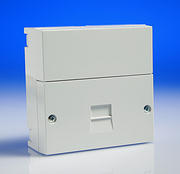
Rather than this which would probably be an extension socket (Note there is no join in the faceplate:

If you have a landline phone, listen to the dial tone and see if it is distorted, crackly or silent. If it is, this points to an issue with the cabling between your property and your nearest distribution point.
Virgin Media
As Virgin Media uses their own cabling network, listening to the dial tone on a landline will not be an effective test. However, you if you have Virgin Media television, take note of the picture quality. If it is degraded, blocky or intermittent, this could indicate issues with cabling coming in to your property.
Conclusion
We are sorry that these issues are beyond your control. You will need to log a fault with your ISP, but you can at least pass on additional information to them to assist with and speed up their troubleshooting process.
If you know anyone else you think could benefit from our guide, please feel free to pass it on to them.
TriFi Networks are Surrey’s WiFi experts and are highly experienced in troubleshooting issues with broadband and WiFi. If you don’t have the time or inclination to follow our DIY troubleshooting guide, leave it to the experts and book a Troubleshooting Consultation today.
Appendix: My computer doesn’t have an Ethernet port
Not to worry! If your computer or laptop doesn’t have an Ethernet port, you will need an adapter. There are two types depending on the type of USB ports you have on your computer.
Take a look and identify which you have, using this diagram as a guide:
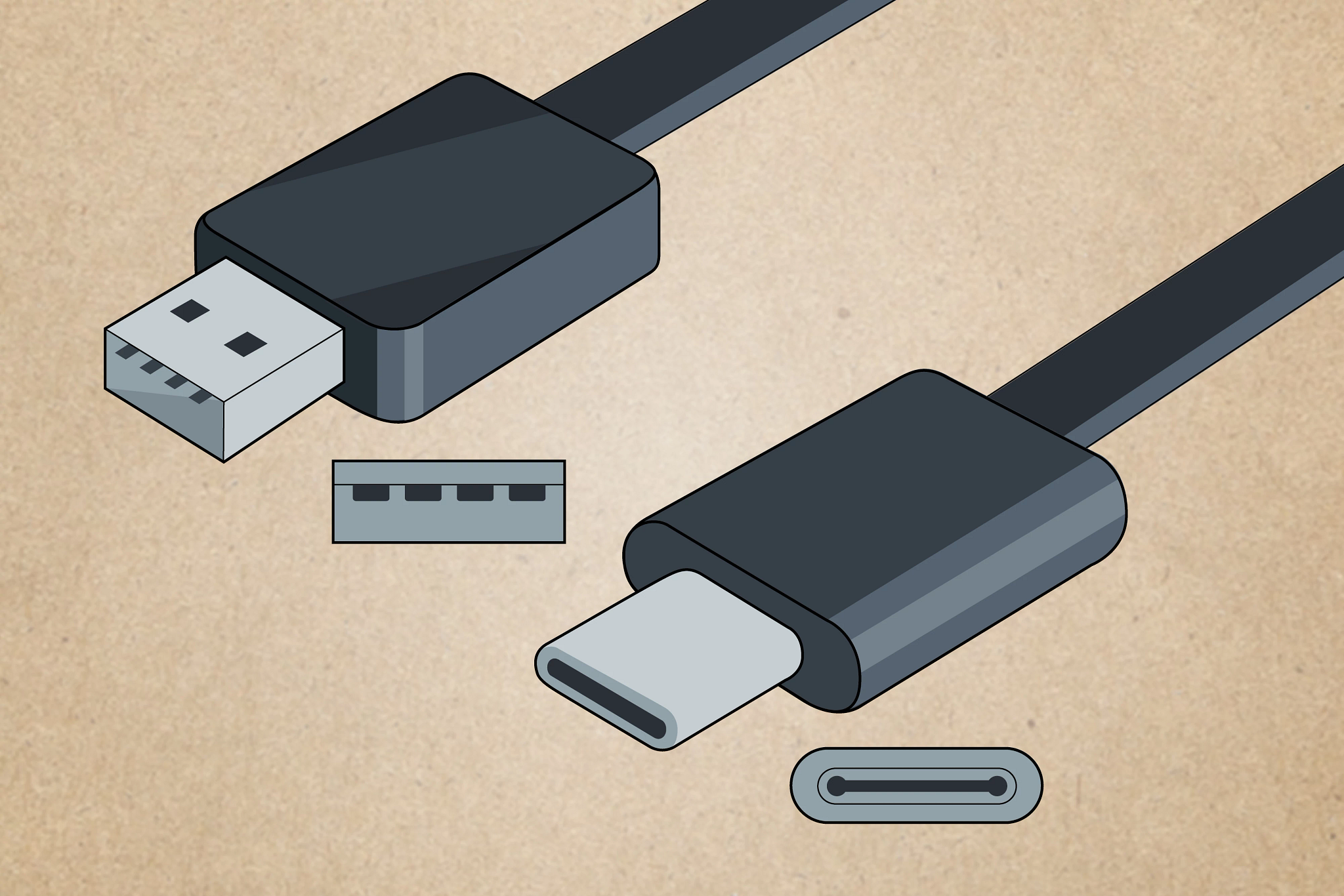
The left is a standard USB A type connector and port. The right is the more modern USB C type connector and port.
Adapters all do the same job, but we have previously used these from Amazon: USB A and USB C. Once you have received your adapter, please return to the guide here.